Mitel M685i Guía de usuario
Busca en linea o descarga Guía de usuario para Teléfonos Mitel M685i. Mitel M685i User guide Manual de usuario
- Pagina / 177
- Tabla de contenidos
- SOLUCIÓN DE PROBLEMAS
- MARCADORES

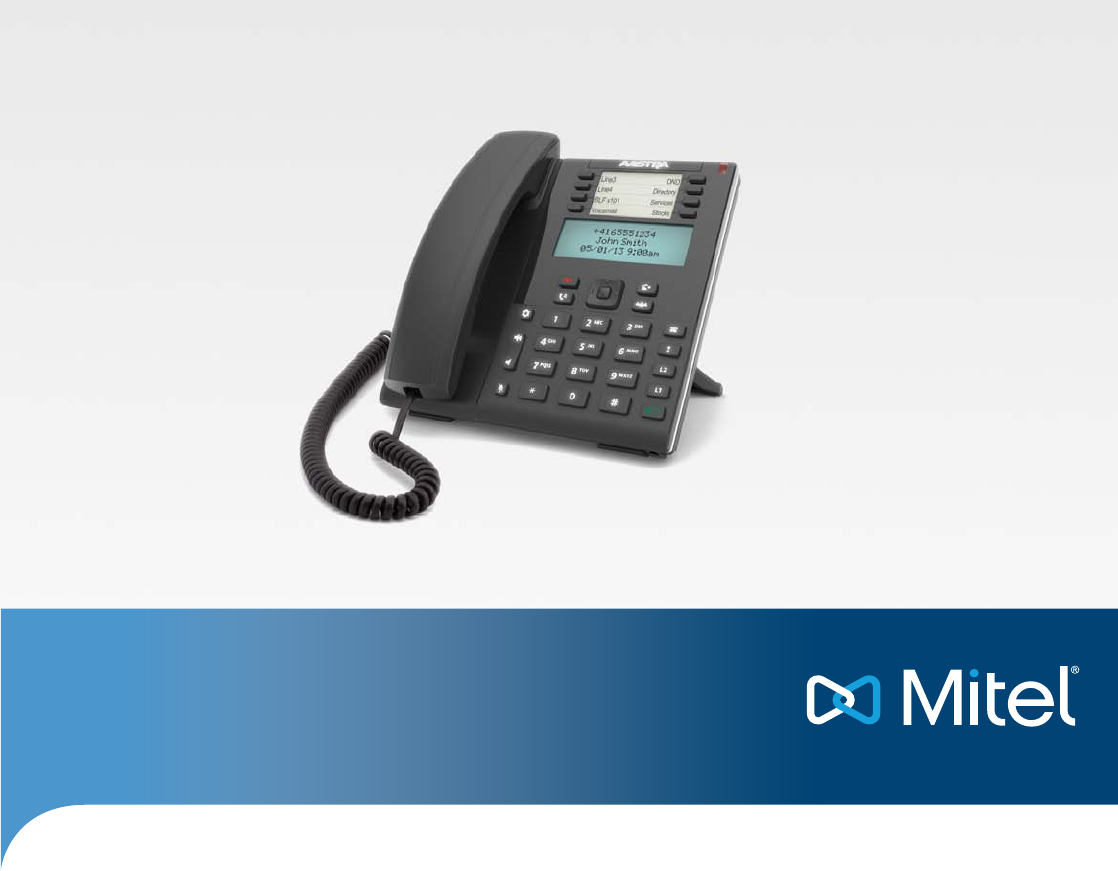
- User Guide 1
- Release 4.0.0 1
- Software License Agreement 2
- Content 4
- Content 5
- About This Guide 7
- Documentation 7
- Phone Features 7
- Requirements 8
- Installation and Setup 8
- IP Phone Keys 9
- Key Description 10
- IP Phone Keys 11
- Keypad Keys 12
- Getting Started 13
- Idle Screens 15
- Incomplete Configuration 16
- No Service 16
- Simplified Options List 18
- Using the IP Phone UI 18
- Administrator 19
- Using the Mitel Web UI 20
- Phone Status 23
- Phone Status 25
- Customizing Your Phone 27
- Customizing Your Phone 29
- Live Dialpad* 32
- Set Audio 33
- Time and Date 35
- Language 39
- User Password 46
- Resetting a User Password 47
- Restarting Your Phone 48
- Credentials 49
- Directory 49
- Phone Lock 50
- Emergency Dial Plan 52
- Line/Call Appearances 53
- Programmable Keys 53
- Line Key 56
- Creating a Speed Dial Key 57
- IP Phone UI 59
- Mitel Web UI 60
- Programmable Keys 60
- Expansion Module Keys 60
- Editing Speed Dial Keys 62
- Do Not Disturb (DND) Key 65
- Busy Lamp Field (BLF) Key 66
- BLF/List Key 67
- Using the Mitel Web UI 69
- Using the ACD Key 70
- Configuring an XML Key 72
- Accessing the XMLApplication 73
- Flash Key 74
- Sprecode Key 75
- Park/Pickup Keys 76
- Parking a Call 77
- Picking Up a Parked Call 77
- Last Call Return Key 78
- Call Forward Key 79
- BLF/Xfer 80
- Speeddial/Xfer 82
- Speeddial/Conf 84
- Directory Key 86
- Configuring a Directory Key 87
- Callers List Key 88
- Redial Key 90
- Configuring a Redial Key 91
- Conference Key 92
- Configuring a Conference Key 93
- Transfer Key 94
- Configuring a Transfer Key 95
- Intercom Key 96
- Using the Icom Key 97
- Services Key 98
- Configuring a Services Key 99
- Using the Services Key 99
- Phone Lock Key 100
- Paging Key 101
- Using the Paging Key 102
- Save Key 103
- Configuring a Save Key 104
- Delete Key 105
- Configuring a Delete Key 106
- None Key 107
- Making Calls 108
- Using Handsfree Speakerphone 109
- Using a Headset 109
- Making Calls 111
- Receiving Calls 112
- Handling Calls 113
- Transferring Calls 114
- Handling Calls 115
- Conferencing Calls 116
- Ending Calls 119
- Managing Calls 120
- Managing Calls 121
- Callers List 125
- DND and Call Forward 128
- Additional Features 146
- Play Call Waiting Tone 147
- Stuttered Dial Tone 148
- XML Beep Support 149
- Status Scroll Delay 150
- Additional Features 151
- Call Waiting Tone Period 154
- Message Waiting Indicator 158
- Group RTP Paging 161
- Star Codes 163
- Other Features 163
- M680i Expansion Module 164
- M685i Expansion Module 164
- Using the Expansion Modules 165
- Troubleshooting Solutions 166
- Limited Warranty 167
- Repair Notice 168
- Exclusions 168
- Warranty Repair Services 169
- After Warranty Service 169
- Appendix A - Time Zone Codes 170
- Appendix A - Time Zone Codes 171
- 41-001566-00 REV00 – 10.2014 174
- Disclaimer 177
Indice de contenidos
Mitel Model 6865i SIP IP PhoneUser Guide Release 4.0.041-001566-00 REV00 – 10.2014
IP Phone Keys 4 41-001566-00 REV00 – 10.2014Key DescriptionThe following table identifies the keys on the key panel of your 6865i IP phone that you ca
Line Keys and Programmable Keys 94 41-001566-00 REV00 – 10.2014Phone Lock KeyYou can configure a programmable key on the phone to use as a lock/unlock
Line Keys and Programmable Keys41-001566-00 REV00 – 10.2014 95Paging KeyYou can configure a Paging key on the phone that allows you to send a Real Ti
Line Keys and Programmable Keys 96 41-001566-00 REV00 – 10.2014Using the Paging KeyThe following procedure describes the use of the Paging key on the
Line Keys and Programmable Keys41-001566-00 REV00 – 10.2014 97Save KeyThe Save key allows you to save items to the 6865i IP phone’s Local Directory.
Line Keys and Programmable Keys 98 41-001566-00 REV00 – 10.2014Configuring a Save KeyMitel Web UI1. Click on Operation > Programmable Keys.orClick
Line Keys and Programmable Keys41-001566-00 REV00 – 10.2014 99Delete KeyThe Delete key allows you to delete items in your Local Directory, Callers Li
Line Keys and Programmable Keys 100 41-001566-00 REV00 – 10.2014Configuring a Delete KeyMitel Web UI1. Click on Operation > Programmable Keys.orCli
Line Keys and Programmable Keys41-001566-00 REV00 – 10.2014 101None KeyUse the following procedure to delete a key’s functionality on the 6865i IP ph
102 41-001566-00 REV00 – 10.2014Making CallsThis section describes ways to make calls on your 6865i phone, using your handset, speakerphone or headset
Making Calls41-001566-00 REV00 – 10.2014 103Using Handsfree SpeakerphoneThe handsfree feature allows you to speak to someone without using the handse
IP Phone Keys41-001566-00 REV00 – 10.2014 5Speaker/Headset Key - Transfers the active call to the speaker or headset, allowing handsfree use of the p
Making Calls 104 41-001566-00 REV00 – 10.2014RedialThe Redial List stores information for up to the last 100 numbers you called. Your phone logs the n
Making Calls41-001566-00 REV00 – 10.2014 105Deleting An Item from the Redial ListDelete All Items from the Redial ListMuteYou can use the key to mu
106 41-001566-00 REV00 – 10.2014Receiving CallsWhen a call is ringing at your extension, you see the inbound call screen. The line/call appearance LED
41-001566-00 REV00 – 10.2014 107Handling CallsWhen you are connected to a call, you can use the hard keys to place a call on hold, and programmable ke
Handling Calls 108 41-001566-00 REV00 – 10.2014Transferring CallsThe 6865i IP phone has a dedicated Transfer key. You can use this hard key to transfe
Handling Calls41-001566-00 REV00 – 10.2014 109Transferring Calls Use the following procedure to transfer a call to another extension.Transferring an
Handling Calls 110 41-001566-00 REV00 – 10.2014Conferencing CallsThe 6865i IP phone has a dedicated Conference key. You can use this hard key to creat
Handling Calls41-001566-00 REV00 – 10.2014 111Creating a Conference Call by Joining Two Existing CallsCentralized Conferencing (for Sylantro and Broa
Handling Calls 112 41-001566-00 REV00 – 10.2014Using Centralized ConferencingUse the following procedure to create a conference call using centralized
Handling Calls41-001566-00 REV00 – 10.2014 113Setting Up Multiple Conferences (for Sylantro Call Manager only)If any party in a conference hangs up (
IP Phone Keys 6 41-001566-00 REV00 – 10.2014Keypad KeysThe 6865i has a keypad with digits from 0 through 9, a * key, and a # key. Keys 2 through 9 con
114 41-001566-00 REV00 – 10.2014Managing CallsThe 6865i has several features that make it easier to manage calls, and to keep track of your caller his
Managing Calls41-001566-00 REV00 – 10.2014 115General Directory FunctionsAccessing and Navigating the DirectoryPerforming a SearchWhen you are in a s
Managing Calls 116 41-001566-00 REV00 – 10.2014Adding New Entries to the Local DirectoryEditing an Existing Local Directory EntryDeleting Entries in t
Managing Calls41-001566-00 REV00 – 10.2014 117Delete All Entries in the Local DirectorySaving Entries to the Local DirectoryYou can save entries (nam
Managing Calls 118 41-001566-00 REV00 – 10.2014Downloading the DirectoryExternal Directory Source FeaturesThe following external Directory sources may
Managing Calls41-001566-00 REV00 – 10.2014 119Callers ListThe Callers List is a stored log of your incoming calls. The 6865i IP phone stores informat
Managing Calls 120 41-001566-00 REV00 – 10.2014Editing Entries in the Callers ListIn the Callers List, if a keypad key is pressed when a number and/or
Managing Calls41-001566-00 REV00 – 10.2014 121Missed Calls IndicatorThe IP phone has a missed calls indicator that increments the number of missed ca
Managing Calls 122 41-001566-00 REV00 – 10.2014DND and Call ForwardThe 6865i has a feature that allows you to configure Do Not Disurb (DND) and Call F
Managing Calls41-001566-00 REV00 – 10.2014 123Configuring a DND KeyTo configure a DND key, see the section, “Do Not Disturb (DND) Key” on page 59.Con
41-001566-00 REV00 – 10.2014 7Getting StartedThe 6865i must be set up and configured prior to its first use. This section describes phone behavior and
Managing Calls 124 41-001566-00 REV00 – 10.20144. Click on Basic Settings > Account Configuration.5. For each account, enable DND by placing a chec
Managing Calls41-001566-00 REV00 – 10.2014 125Using DND Modes via the IP Phone UIAfter you add a DND key to your phone, you can toggle the DND state
Managing Calls 126 41-001566-00 REV00 – 10.2014DND in Custom ModeIP Phone UI1. Press the DND key on the phone. The screen displays a list of the accou
Managing Calls41-001566-00 REV00 – 10.2014 127Call Forward ConfigurationCall Forward (CFWD) on the IP phone allows incoming calls to be forwarded to
Managing Calls 128 41-001566-00 REV00 – 10.2014Configuring CFWD Using the Mitel Web UIMitel Web UI1. Click on Basic Settings > Preferences > Gen
Managing Calls41-001566-00 REV00 – 10.2014 1294. Click on Basic Settings > Account ConfigurationThe illustration above shows 2 accounts configured
Managing Calls 130 41-001566-00 REV00 – 10.2014Using CFWD via the IP Phone UIOnce CFWD is enabled on your phone, you can access and change the configu
Managing Calls41-001566-00 REV00 – 10.2014 131CFWD in Account ModeIP Phone UI1. Use the 3 and 4 navigation keys to scroll through each account.In th
Managing Calls 132 41-001566-00 REV00 – 10.20144. Press the 4 Change navigation key for the state you selected in Step 3. Scroll to the CFWD State scr
Managing Calls41-001566-00 REV00 – 10.2014 13310. For the CFWD No Answer state, In the CFWD Number screen, press the 2 navigation key to scroll to th
Getting Started 8 41-001566-00 REV00 – 10.2014If appropriate servers are found they are listed for you to select from by scrolling down to view the co
Managing Calls 134 41-001566-00 REV00 – 10.2014CFWD in Phone ModeIP Phone UI1. Use the 3 and 4 navigation keys to scroll through each account.In the a
Managing Calls41-001566-00 REV00 – 10.2014 1354. Press the 4Change key for the mode you selected in Step 2. Scroll to the CFWD State screen. This scr
Managing Calls 136 41-001566-00 REV00 – 10.201410. For the CFWD No Answer state, in the CFWD Number screen, press the 2 navigation key to scroll to th
Managing Calls41-001566-00 REV00 – 10.2014 137CFWD in Custom ModeIP Phone UI1. Use the 3 and 4 navigation keys to scroll through each account.In the
Managing Calls 138 41-001566-00 REV00 – 10.20144. Press the 4Change key for the mode you selected in step 2. Scroll to the CFWD State screen. This dis
Managing Calls41-001566-00 REV00 – 10.2014 13910. For the CFWD No Answer state, in the CFWD Number screen, press the 2 navigation key to scroll to th
140 41-001566-00 REV00 – 10.2014Additional FeaturesThis section describes additional features you can use on the 6865i phone.Display DTMF DigitsA feat
Additional Features41-001566-00 REV00 – 10.2014 141Play Call Waiting ToneYou can enable or disable the playing of a call waiting tone when you are on
Additional Features 142 41-001566-00 REV00 – 10.2014Stuttered Dial ToneYou can enable or disable the playing of a stuttered dial tone when there is a
Additional Features41-001566-00 REV00 – 10.2014 143XML Beep SupportUsing the Mitel Web UI, you can enable or disable a beep to be audible when the ph
Getting Started41-001566-00 REV00 – 10.2014 9Idle ScreensWhen the phone has successfully updated the configuration and connected to the network, the
Additional Features 144 41-001566-00 REV00 – 10.2014Status Scroll DelayUsing the Mitel Web UI, you can specify a scroll delay option that allows you t
Additional Features41-001566-00 REV00 – 10.2014 145Switch UI Focus to Ringing LineYou can configure a feature on the 6865i that controls the behavior
Additional Features 146 41-001566-00 REV00 – 10.2014Call Hold Reminder During Active CallsThe IP phones allow you to enable or disable the ability for
Additional Features41-001566-00 REV00 – 10.2014 147Call Hold Reminder (on single hold)On the 6865i IP phone, you can enable or disable a feature that
Additional Features 148 41-001566-00 REV00 – 10.2014Call Waiting Tone PeriodYou can specify a specific time period (in seconds) for the call waiting t
Additional Features41-001566-00 REV00 – 10.2014 149Preferred Line and Preferred Line TimeoutThe 6865i has two parameters preferred line and preferred
Additional Features 150 41-001566-00 REV00 – 10.2014Configuring Preferred Line and Preferred Line Timeout Using the Mitel Web UIMitel Web UI1. Click o
Additional Features41-001566-00 REV00 – 10.2014 151Goodbye Key Cancels Incoming CallsThe 6865i has a feature that allows you to configure the Goodbye
Additional Features 152 41-001566-00 REV00 – 10.2014Message Waiting IndicatorYou can configure the Message Waiting Indicator (MWI) to illuminate for a
Additional Features41-001566-00 REV00 – 10.2014 153Incoming Intercom Call FeaturesBy default, the IP phone allows incoming intercom calls to be autom
Getting Started 10 41-001566-00 REV00 – 10.2014Incomplete ConfigurationIf your phone displays an Incomplete Config message without any extension or us
Additional Features 154 41-001566-00 REV00 – 10.2014Configuring Incoming Intercom SettingsMitel Web UI1. Click on Basic Settings > Preferences >
Additional Features41-001566-00 REV00 – 10.2014 155Group RTP PagingYou can configure the phone to allow it to receive a Real Time Transport Protocol
Additional Features 156 41-001566-00 REV00 – 10.2014Shared Call Appearance (SCA) Call BridgingShared Call Appearance (SCA) is when incoming calls are
Additional Features41-001566-00 REV00 – 10.2014 157Line Keys and Idle ScreensLine Key Phone BehaviorStar CodesAll of the main call handling and exten
158 41-001566-00 REV00 – 10.2014Model M680i and M685i Expansion ModulesThe 6865i IP phone two optional expansion modules that attach to the right side
Model M680i and M685i Expansion Modules41-001566-00 REV00 – 10.2014 159Using the Expansion ModulesAfter configuring the softkeys on the respective ex
160 41-001566-00 REV00 – 10.2014Troubleshooting SolutionsWhy is my display blank?Ensure that power is being provided to your phone. See the Connecting
41-001566-00 REV00 – 10.2014 Warranty-1Limited Warranty(Not applicable in Australia – see below for Limited Warranty in Australia)Mitel warrants this
Warranty-2 41-001566-00 REV00 – 10.2014Limited Warranty (Australia Only)The benefits under the Mitel Limited Warranty below are in addition to other r
Limited Warranty (Australia Only)41-001566-00 REV00 – 10.2014 Warranty-3Warranty Repair ServicesProcedure: Should the product fail during the Warrant
41-001566-00 REV00 – 10.2014 11Methods for Customizing Your PhoneThere are two ways to customize specific options on your phone:• Using the Options
A-1 41-001566-00 REV00 – 10.2014Appendix A - Time Zone CodesThe following table identifies the time zone name and time zone code to use on the IP phon
Appendix A - Time Zone Codes41-001566-00 REV00 – 10.2014 A-2CA-NewfoundlandCA-AtlanticCA-EasternCA-SaskatchewanCA-CentralCA-MountainCA-PacificCA-Yuko
Appendix A - Time Zone Codes A-3 41-001566-00 REV00 – 10.2014LC-St Lucia LI-Vaduz LT-V iln iu s LU-Luxembourg LV-Riga ASTCETEETCETEETMC-Monaco MD-Chis
Appendix A - Time Zone Codes41-001566-00 REV00 – 10.2014 A-4TR-Istanbul TT-Port of Spain TW-Taipei EETASTCSTUA-Kiev US-Eastern US-Central US-Mountain
Index-1 41-001566-00 REV00 – 10.2014IndexNumerics6865icustomizing ...
Index41-001566-00 REV00 – 10.2014 Index-2Phone Lock key ...
Index Index-3 41-001566-00 REV00 – 10.2014XML beep support ...
DisclaimerMitel will not accept liability for any damages and/or long distance charges, which result from unauthorized and/or unlawful use. While ever
Methods for Customizing Your Phone 12 41-001566-00 REV00 – 10.2014Simplified Options ListYour System Administrator may configure a simplified Options
Methods for Customizing Your Phone41-001566-00 REV00 – 10.2014 135. Press the key or the 4Set, or 4Done key to save the change.6. Press the key,
ii 41-001566-00 REV00 – 10.2014Software License AgreementMitel, hereinafter known as "Seller", grants to Customer a personal, worldwide, non
Methods for Customizing Your Phone 14 41-001566-00 REV00 – 10.2014Phone Options via the Mitel Web UIIn addition to the IP phone UI options, you can cu
Methods for Customizing Your Phone41-001566-00 REV00 – 10.2014 15The following categories display in the side menu of the Mitel Web UI: Status, Opera
Methods for Customizing Your Phone 16 41-001566-00 REV00 – 10.2014Headings DescriptionsBasic Settings Preferences - Allows you to enable/disable the f
41-001566-00 REV00 – 10.2014 17Phone StatusYou can view the status of your phone using the IP phone UI or the Mitel Web UI.Phone Status via IP Phone U
Phone Status 18 41-001566-00 REV00 – 10.2014Finding Your Phone’s IP Address If you want to access your phone’s options using an Internet browser, you
Phone Status41-001566-00 REV00 – 10.2014 19Phone Status via the Mitel Web UIUse the following procedure to view the phone status via the Mitel Web UI
Phone Status 20 41-001566-00 REV00 – 10.2014SIP Account StatusThe IP phones show the SIP registration status on the IP phone’s Status screen in the Mi
41-001566-00 REV00 – 10.2014 21Customizing Your PhoneThe following paragraphs describe the options available from either the IP phone UI, the Mitel We
Customizing Your Phone 22 41-001566-00 REV00 – 10.2014When you configure the country's tone set, the country-specific tone is heard on the phone
Customizing Your Phone41-001566-00 REV00 – 10.2014 23Mitel Web UI1. Click on Basic Settings > Preferences > Ring Tones.For global configuration
41-001566-00 REV00 – 10.2014 iiiContentSoftware License Agreement . . . . . . . . . . . . . . . . . . . . . . . . . . . . . . . . . . . . . . . . . .
Customizing Your Phone 24 41-001566-00 REV00 – 10.2014Installing Custom Ring Tones Using the Mitel Web UIMitel Web UI1. Click on Basic Settings > C
Customizing Your Phone41-001566-00 REV00 – 10.2014 25DisplayThe 6865i IP phone allows you to configure display settings pertaining to the LCD contras
Customizing Your Phone 26 41-001566-00 REV00 – 10.2014Live Dialpad*The Live Dialpad option on the IP phone turns the live dialpad mode on or off. With
Customizing Your Phone41-001566-00 REV00 – 10.2014 27Set AudioThe Set Audio option on the IP phone allows you to set the audio mode for your IP phone
Customizing Your Phone 28 41-001566-00 REV00 – 10.2014Headset Mic VolumeThe Headset Mic Volume option allows you to set the volume level for the heads
Customizing Your Phone41-001566-00 REV00 – 10.2014 29Time and DateOn the IP phones, you can configure the following:• Time and date• Time and date fo
Customizing Your Phone 30 41-001566-00 REV00 – 10.2014Configuring Date and Date FormatConfiguring the Time ZoneIP Phone UI1. Press on the phone to e
Customizing Your Phone41-001566-00 REV00 – 10.2014 31Configuring Daylight Savings TimeConfiguring Time ServersWith a valid time server enabled your I
Customizing Your Phone 32 41-001566-00 REV00 – 10.2014Mitel Web UI1. Click on Basic Settings > Preferences > Time and Date Setting2. In the Time
Customizing Your Phone41-001566-00 REV00 – 10.2014 33LanguageThe IP phones support several different languages. You can have the IP phone UI and the
Content iv 41-001566-00 REV00 – 10.2014Restarting Your Phone . . . . . . . . . . . . . . . . . . . . . . . . . . . . . . . . . . . . . . . . . . . .
Customizing Your Phone 34 41-001566-00 REV00 – 10.2014IP Phone UI1. Press on the phone to enter Options List.2. Select Preferences.3. Select Languag
Customizing Your Phone41-001566-00 REV00 – 10.2014 35Input LanguageThe 6865i supports text and character inputs in various languages (English, German
Customizing Your Phone 36 41-001566-00 REV00 – 10.2014SpanishGermanItalianKey Uppercase Characters Lowercase Characters00 01 1.:;=_,-'&() 1.
Customizing Your Phone41-001566-00 REV00 – 10.2014 37PortugueseRussianNordicKey Uppercase Characters Lowercase Characters00 01 1.:;=_,-'&()
Customizing Your Phone 38 41-001566-00 REV00 – 10.2014Configuring Language Input Using the IP Phone UIYou can configure the language you use for input
Customizing Your Phone41-001566-00 REV00 – 10.2014 39Latin 2 Character SetThe 6865i includes support for ISO 8859-2 (Latin2) of multi-national langua
Customizing Your Phone 40 41-001566-00 REV00 – 10.2014User PasswordThis category allows you to change the user password for your phone. Changing your
Customizing Your Phone41-001566-00 REV00 – 10.2014 41Resetting a User PasswordIf you forget your password, you can reset it and enter a new password.
Customizing Your Phone 42 41-001566-00 REV00 – 10.2014Restarting Your PhoneYou may want to restart your phone to check for updates on the server or yo
Customizing Your Phone41-001566-00 REV00 – 10.2014 43CredentialsSome features (e.g. LDAP Directory, Microsoft Exchange Directory, etc...) require aut
Content41-001566-00 REV00 – 10.2014 vDelete Key. . . . . . . . . . . . . . . . . . . . . . . . . . . . . . . . . . . . . . . . . . . . . . . . . . .
Customizing Your Phone 44 41-001566-00 REV00 – 10.2014Enabling/Disabling Directories and Renaming Labels Using the IP Phone UIPhone LockYou can lock y
Customizing Your Phone41-001566-00 REV00 – 10.2014 45Locking/Unlocking a PhoneUse the following procedures to lock an IP phone and prevent it from be
Customizing Your Phone 46 41-001566-00 REV00 – 10.2014Emergency Dial PlanPublic telephone networks in countries around the world have a single emergen
41-001566-00 REV00 – 10.2014 47Line Keys and Programmable KeysThis section describes the Multiple Line/Call Appearance Keys (L1 and L2) and the custom
Line Keys and Programmable Keys 48 41-001566-00 REV00 – 10.2014Programmable KeysThere are 8 multi-functional keys on the 6865i phone that are programm
Line Keys and Programmable Keys41-001566-00 REV00 – 10.2014 49Phone Lock Indicates the key is configured as a phone lock key, allowing you to press t
Line Keys and Programmable Keys 50 41-001566-00 REV00 – 10.2014Line KeyYou can set a programmable key to act as a line/call appearance key on the 6865
Line Keys and Programmable Keys41-001566-00 REV00 – 10.2014 51Creating a Speed Dial KeyThe normal function of the speed dial option allows you to dia
Line Keys and Programmable Keys 52 41-001566-00 REV00 – 10.2014Press-and-Hold to Create a Speed Dial (applicable to programmable keys and keypad keys)
Line Keys and Programmable Keys41-001566-00 REV00 – 10.2014 53Creating a Speed Dial Using the Speed Dial Edit OptionYou can use the IP phone UI at th
Content vi 41-001566-00 REV00 – 10.2014Incoming Intercom Call Features . . . . . . . . . . . . . . . . . . . . . . . . . . . . . . . . . . . . . . .
Line Keys and Programmable Keys 54 41-001566-00 REV00 – 10.2014Creating a Speed Dial Using a Programmable Key in the Mitel Web UIMitel Web UI1. Click
Line Keys and Programmable Keys41-001566-00 REV00 – 10.2014 55Creating Speed Dial Key Using Keypad Speed Dial in the Mitel Web UIMitel Web UI1. Click
Line Keys and Programmable Keys 56 41-001566-00 REV00 – 10.2014Editing Speed Dial KeysOn the 6865i, you can edit a speed dial key using any of the fol
Line Keys and Programmable Keys41-001566-00 REV00 – 10.2014 57Editing a Speed Dial on a Programmable KeyMitel Web UI1. Click on Operation > Progra
Line Keys and Programmable Keys 58 41-001566-00 REV00 – 10.2014Editing a Speed Dial Using Keypad Speed Dial in the Mitel Web UIMitel Web UI1. Click on
Line Keys and Programmable Keys41-001566-00 REV00 – 10.2014 59Do Not Disturb (DND) KeyThe IP phones have a feature you can enable called Do Not Distu
Line Keys and Programmable Keys 60 41-001566-00 REV00 – 10.2014Busy Lamp Field (BLF) KeyThe BLF feature on the IP phones allows a specific extension t
Line Keys and Programmable Keys41-001566-00 REV00 – 10.2014 61BLF/List KeyThe BLF/List feature on the IP phones is specifically designed to support t
Line Keys and Programmable Keys 62 41-001566-00 REV00 – 10.20144. In the Line field, select a line number that is actively registered to the appropria
Line Keys and Programmable Keys41-001566-00 REV00 – 10.2014 63Automatic Call Distribution (ACD) Key (for Sylantro Call Managers)The 6865i supports Au
41-001566-00 REV00 – 10.2014 1WelcomeThe Mitel 6865i offers exceptional flexibility in a true enterprise grade SIP desktop phone that can support up t
Line Keys and Programmable Keys 64 41-001566-00 REV00 – 10.2014Using the ACD KeyUse the following procedure to log into a phone queue from your IP pho
Line Keys and Programmable Keys41-001566-00 REV00 – 10.2014 65XML KeyThe 6865i IP phone has a feature you can enable called XML (Extensible Markup La
Line Keys and Programmable Keys 66 41-001566-00 REV00 – 10.2014Configuring an XML KeyMitel Web UI1. Click on Operation > Programmable Keys.orClick
Line Keys and Programmable Keys41-001566-00 REV00 – 10.2014 67Accessing the XMLApplicationAfter XML applications have been saved to your IP phone, an
Line Keys and Programmable Keys 68 41-001566-00 REV00 – 10.2014Flash KeyYou can set a programmable key to generate a flash event when it is pressed on
Line Keys and Programmable Keys41-001566-00 REV00 – 10.2014 69Sprecode KeyYou can set a programmable key to automatically activate specific services
Line Keys and Programmable Keys 70 41-001566-00 REV00 – 10.2014Park/Pickup KeysThe 6865i phone has a park and pickup call feature that allows you to p
Line Keys and Programmable Keys41-001566-00 REV00 – 10.2014 71Using the Park Call/Pickup Parked Call FeatureUse the following procedure on the IP pho
Line Keys and Programmable Keys 72 41-001566-00 REV00 – 10.2014Last Call Return Key Using the Mitel Web UI, you can configure the Last Call Return fun
Line Keys and Programmable Keys41-001566-00 REV00 – 10.2014 73Call Forward KeyUsing the Mitel Web UI, you can configure the Call Forward function on
Welcome 2 41-001566-00 REV00 – 10.2014Requirements• SIP-based IP PBX system or network installed and running with a SIP account created for the 6865i
Line Keys and Programmable Keys 74 41-001566-00 REV00 – 10.2014BLF/XferThe BLF key allows one or more extensions to be monitored, and once there is an
Line Keys and Programmable Keys41-001566-00 REV00 – 10.2014 75Configuring a BLF/Xfer Key Using the Mitel Web UIMitel Web UI1. Click on Operation >
Line Keys and Programmable Keys 76 41-001566-00 REV00 – 10.2014Speeddial/XferThe Speeddial key allows a number to be dialed quickly by pressing one ke
Line Keys and Programmable Keys41-001566-00 REV00 – 10.2014 77Configuring a Speeddial/Xfer KeyMitel Web UI1. Click on Operation > Programmable Key
Line Keys and Programmable Keys 78 41-001566-00 REV00 – 10.2014Speeddial/ConfThe 6865i allows you to configure a programmable key to be used as a spee
Line Keys and Programmable Keys41-001566-00 REV00 – 10.2014 79Configuring a Speeddial/Conf KeyMitel Web UI1. Click on Operation > Programmable Key
Line Keys and Programmable Keys 80 41-001566-00 REV00 – 10.2014Directory KeyThe Directory feature allows you to store frequently used names and number
Line Keys and Programmable Keys41-001566-00 REV00 – 10.2014 81Configuring a Directory KeyMitel Web UI1. Click on Operation > Programmable Keys.orC
Line Keys and Programmable Keys 82 41-001566-00 REV00 – 10.2014Callers List KeyBy default, the 6865i has a dedicated Callers List key. However, using
Line Keys and Programmable Keys41-001566-00 REV00 – 10.2014 83Configuring a Callers List KeyMitel Web UI1. Click on Operation > Programmable Keys.
41-001566-00 REV00 – 10.2014 3IP Phone KeysKey PanelThe following sections describe the various 6865i phone key functions and how they help you make a
Line Keys and Programmable Keys 84 41-001566-00 REV00 – 10.2014Redial KeyBy default, the 6865i has a dedicated Redial List key. However, using the Mit
Line Keys and Programmable Keys41-001566-00 REV00 – 10.2014 85Configuring a Redial KeyMitel Web UI1. Click on Operation > Programmable Keys.orClic
Line Keys and Programmable Keys 86 41-001566-00 REV00 – 10.2014Conference KeyBy default, the 6865i has a dedicated Conference key. However, using the
Line Keys and Programmable Keys41-001566-00 REV00 – 10.2014 87Configuring a Conference KeyMitel Web UI1. Click on Operation > Programmable Keys.or
Line Keys and Programmable Keys 88 41-001566-00 REV00 – 10.2014Transfer KeyBy default, the 6865i has a dedicated Transfer key. However, using the Mite
Line Keys and Programmable Keys41-001566-00 REV00 – 10.2014 89Configuring a Transfer KeyMitel Web UI1. Click on Operation > Programmable Keys.orCl
Line Keys and Programmable Keys 90 41-001566-00 REV00 – 10.2014Intercom KeyBy default, the IP phone allows incoming intercom calls to be automatically
Line Keys and Programmable Keys41-001566-00 REV00 – 10.2014 91Using the Icom KeyIP Phone UI1. Press the Icom key.2. Enter the extension number of the
Line Keys and Programmable Keys 92 41-001566-00 REV00 – 10.2014Services KeyThe 6865i allows you to configure a Services key that, when pressed display
Line Keys and Programmable Keys41-001566-00 REV00 – 10.2014 93Configuring a Services KeyUsing the Services KeyMitel Web UI1. Click on Operation >
Mas documentos para Teléfonos Mitel M685i


Relacionado con productos y manuales para Teléfonos Mitel M685i
 (26 paginas)
(61 paginas)
(30 paginas)
(26 paginas)
(70 paginas)
(5 paginas)
(16 paginas)
(178 paginas)
(98 paginas)
(11 paginas)
(26 paginas)
(61 paginas)
(30 paginas)
(26 paginas)
(70 paginas)
(5 paginas)
(16 paginas)
(178 paginas)
(98 paginas)
(11 paginas)
 (58 paginas) (60 paginas)
(44 paginas)
(28 paginas)
(104 paginas)
(19 paginas)
(42 paginas)
(26 paginas)
(58 paginas) (60 paginas)
(44 paginas)
(28 paginas)
(104 paginas)
(19 paginas)
(42 paginas)
(26 paginas)
© 2020, manymanuals.es. Todos los derechos reservados | 0.060 s |
 Manymanuals.com
 Manymanuals.de
 Manymanuals.fr
 Manymanuals.it
 Manymanuals.pl
 Manymanuals.cz
 Manymanuals.es
 Manymanuals-pt.com
Comentarios a estos manuales